Template Builder
Kickstart your Cubase templates with properly configured tracks for seamless articulation control
How to Use Template Builder
Open Template Builder
Click the Template Builder button in the upper right corner of the Cubby Remote app interface.
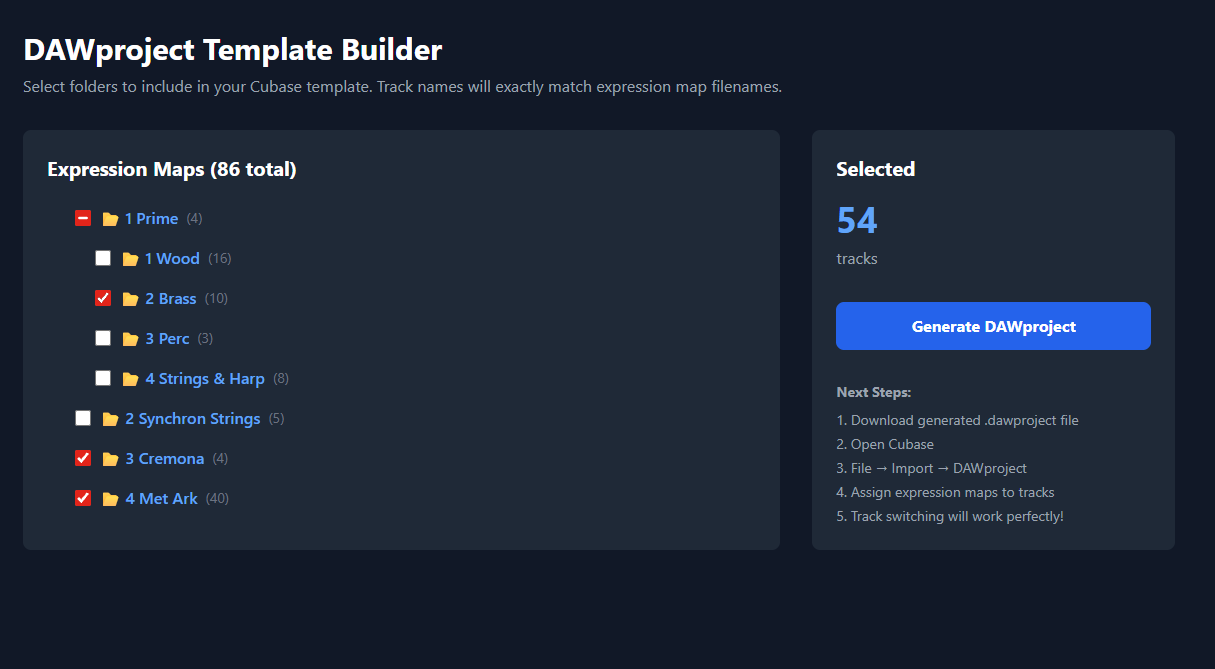
Select Expression Map Folders
Browse and select folders containing your Cubase expression maps. The builder will scan and display all available maps organized by folder.
Choose Maps to Import
Use the checkboxes to select which expression maps you want to include in your template. You can select individual maps or entire folders.
Generate DAWproject File
Click "Generate DAWproject" to create and download a .dawproject file. This file contains tracks named to match your selected expression maps.
Import in Cubase
Open Cubase and go to File → Import → DAWproject. Select your generated file to import the template with properly named tracks.
Assign Expression Maps
For each track, assign the corresponding expression map (with the same name as the track). This ensures Cubby Remote can automatically switch articulations when you select tracks.
Important
For Cubby Remote to work correctly, the expression map assigned to each track must have the exact same name as the track itself. The Template Builder creates tracks with names matching your expression maps, making it easy to maintain this naming convention.